
PS5 14.10 update stuck at the same percentage, failing over and over, or just not installing? You’re not out of options. Sony’s own support pages give three official routes: restart the download, install the update from a USB drive in Safe Mode, and then contact PlayStation Support if neither works.
This guide walks through each one in plain words, using Sony’s wording where it matters. Everything here was checked against Sony’s support pages on 18 Oct 2026 (SAST).
We only recommend what we’d use.
The short answer
Try Sony’s fixes in this order:
- Restart the download from Downloads/Uploads in the control center.
- If it keeps failing, put Sony’s update file on a USB drive with a PC or Mac and install it from Safe Mode.
- If the console still won’t update, check PlayStation’s service status and then contact PlayStation Support.
Sony only warns about data loss for its reset options in Safe Mode, which aren’t part of these fixes. We flag them clearly below.
First, check it isn’t PlayStation Network
Before you blame your console, open PlayStation’s service status page. If Sony is reporting a problem with its services, waiting may be the only fix. Sony’s contact page says the same thing: if you’re having trouble connecting, “you can always check to confirm there are no on-going issues.”
Fix 1: Restart the PS5 14.10 update stuck in Downloads
Sony says that “if a system software update is stuck, restart the download.” Its steps are:
- Press the PS button on your controller to open the control center, then select Downloads/Uploads.
- Highlight the system software update and select View Error Info, then Try Again.
If you’d rather start a fresh check, Sony’s manual route is Settings > System > System Software > System Software Update and Settings, then Update System Software. “Update Available” only appears if a newer version is waiting for you.
Sony adds that if you “experience multiple failed downloads,” you should move on to the PC or Mac method below.
Fix 2: Update your PS5 from USB in Safe Mode
This is Sony’s own fallback for when restarting the download fails. You need a PC or Mac and a USB drive formatted as FAT32 or exFAT.
- Turn off your PS5.
- On your PC or Mac, create a folder called PS5 on the USB drive. Inside it, create a folder called UPDATE.
- Download the update file from Sony’s PS5 system software page and save it in the UPDATE folder as PS5UPDATE.PUP. Sony says you need “approximately 1,1GB of free space.”
- Plug the USB drive into your PS5.
- Start the console in Safe Mode: press and hold the power button, and let go after the second beep.
- Select Update System Software.
- Select Update from USB Storage Device, then OK.
Download the update file, not the separate PS5 console reinstallation file on the same Sony page. That one goes with Reset PS5 (Reinstall System Software), which Sony says “will delete all of the data on your PS5 console.”
On Safe Mode, Sony’s guide adds that one beep sounds when you first press the button and another seven seconds later. You then connect the controller with the USB cable and press the PS button.
If the console doesn’t see the file, Sony’s advice is to check the folder and file names and type them “using uppercase letters.”
Use Sony’s file and nothing else
Only download the file from playstation.com. Sony’s notice on the same page is blunt: don’t install update data “other than the official update file provided online by Sony Interactive Entertainment.” It warns that using another source, another method, or a modified console “can void the system warranty and affect your ability to obtain warranty services and repair services.”
The USB route installs the file Sony offers, not a version you pick. At the time of writing, Sony’s update features page lists 26.06-14.10.00 as the latest version, with two notes: “We’ve made some security fixes to the system software” and “We’ve improved system software performance and stability.” Our 14.10 explainer covers what that patch changed.
Don’t cut the power mid-install
Sony says: “Don’t turn off your console during the installation. Interrupting the installation can cause your console to be damaged.” It also advises against installing “directly before or after a power outage.” If your area has scheduled power cuts, plan the update for a window when the power should stay on.
Safe Mode options that erase data
Safe Mode has eight options, and two of them wipe your console. Sony describes them like this:
- Reset PS5: “Deletes all user data and restores the PS5 console to its original state.”
- Reset PS5 (Reinstall System Software): “Deletes all user data and removes PS5 system software.”
Sony’s system software page puts it plainly: reinstalling the system software “will delete all of the data on your PS5 console.” Sony says this is often called a “factory” or “hard” reset. Don’t pick either option just to get an update installed. Update System Software is the one you want.
If you’ve been told to reinstall anyway, back up first. Sony’s Safe Mode guide says to “back up data to a USB drive or Cloud Storage before selecting these options.”
By contrast, Sony says Repair Console Storage “does not erase data,” and that Restore Default Settings “won’t delete content on console storage such as games, apps, screenshots, video clips, and saved data.”
When to contact PlayStation Support
If the download keeps failing and the USB update doesn’t work either, stop there. Sony’s Safe Mode page points to the PlayStation Repairs diagnostic tool “for further steps and to arrange a repair,” and its contact page lists the ways to reach support.
Don’t open the console or try tools from forums. Beyond the warranty warning above, Sony says a console updated another way, or one that’s been modified, “might not operate properly and might not be able to install the official update data.”
Why people are chasing 14.10 right now
Owners have reported that a PS5 on firmware 14.00 can’t sign in to PSN until it installs 14.10 (Notebookcheck, 15 Oct); Sony hasn’t confirmed it. Our post on the PSN sign-in reports has the details.
Sony does say that “you might not be able to use some applications or content without first updating the system software.” If you’re wondering whether jailbroken consoles get banned, see what Sony’s terms say. For background on why 14.10 matters, start with what a PS5 jailbreak means.
Quick questions
Will updating from USB delete my games?
Sony doesn’t list any data loss for Update System Software. The options it says delete all user data are the two reset options, Reset PS5 and Reset PS5 (Reinstall System Software).
Does the USB drive need a special format?
Yes. Sony says FAT32 or exFAT, with a PS5 folder, an UPDATE folder inside it, and the file named PS5UPDATE.PUP.
Can I use the USB method to install an older version?
No. Sony’s page offers its current update file, and Sony warns against installing update data from any other source.
What the mid-October PSN sign-in reports actually claimed
From about 15 October 2026, owners reported that a PS5 still on firmware 14.00 could not sign in to PlayStation Network until it installed 14.10. Sony has not published a notice confirming that gate. Notebookcheck (15 Oct 2026) summarised the reports. A console that cannot sign in still works offline, but multiplayer, the store, downloads you have not already stored, and much of a digital library sit behind that sign-in. Sony’s own notes already say you might not be able to use some applications or content without first updating the system software.
That claim landed in the same week as another story. An unofficial storefront for modified consoles, which listed more than 1,600 PS4 and PS5 games, went offline around 13 October. It reportedly shut down after its developer received a cease-and-desist letter from Sony’s lawyers. That letter has not been seen publicly. Tom’s Hardware (14 Oct 2026) notes there are “no concrete sources for this cease-and-desist,” and TechSpot (14 Oct 2026) says neither the developer nor Sony publicly confirmed the legal notice. Both report that copies of the store appeared within about a day. We won’t name or link those copies. Downloading commercial games you have not paid for is copyright infringement, whatever the storefront looks like.
The public Relapse jailbreak window discussed elsewhere on this site runs through firmware 13.60; press coverage treats 14.00 as already outside it. Homebrew users who had been avoiding newer firmware to keep that window faced a sharper choice if PSN sign-in truly requires 14.10: stay offline, or update and leave the public exploit range. For a stock console that already installs official updates, none of this changes the fix path above — restart the download, use Sony’s USB file in Safe Mode, then contact PlayStation Support.
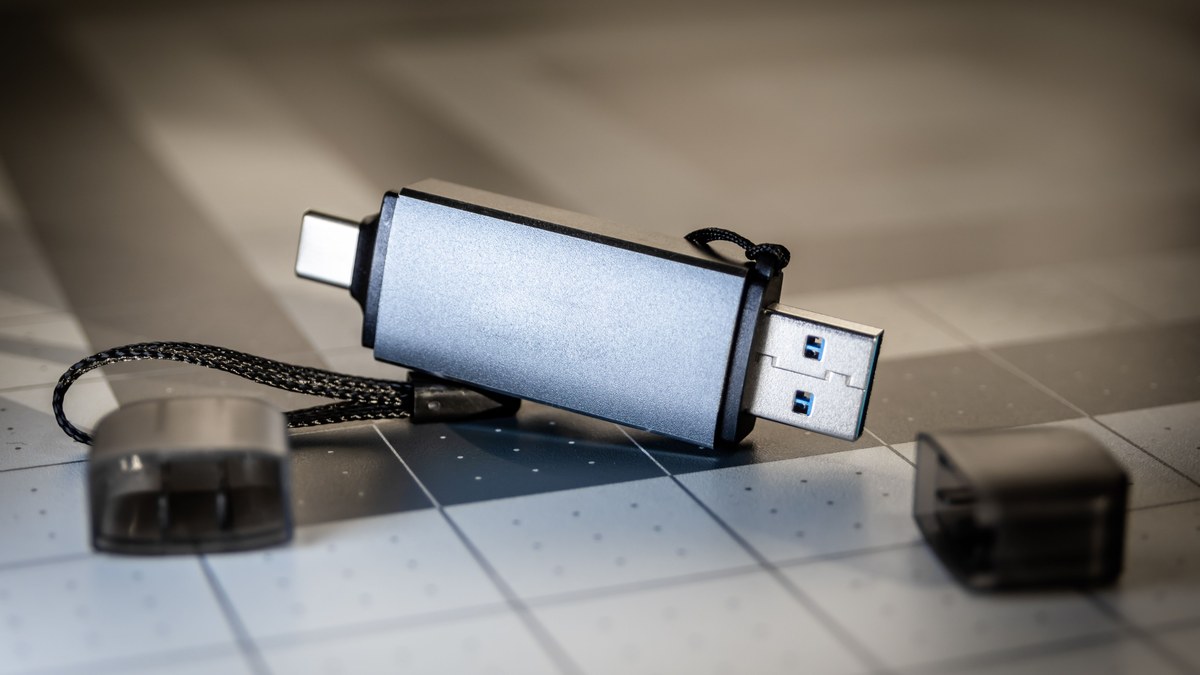
Featured photo: A USB flash drive, the kind you use for a manual PS5 update. Photo: Get Lost Mike / Pexels
Sources: Sony: How to update system software on a PS5 console; Sony: How to use Safe Mode on PS5 consoles; Sony: PS5 system software update features; Sony: Contact PlayStation Support; PlayStation Service Status; Notebookcheck, 15 Oct 2026.